Reports
Reports generate PDF snapshots of dashboards on a scheduled basis and can
optionally deliver them by email. The Reports menu is visible to users with
either listReports or manageReports. Creating, editing, enabling,
disabling, and deleting reports additionally requires manageReports.
Creating a report
Go to Reports in the top menu.
Click the + button to open the creation panel.
Fill in the report settings:
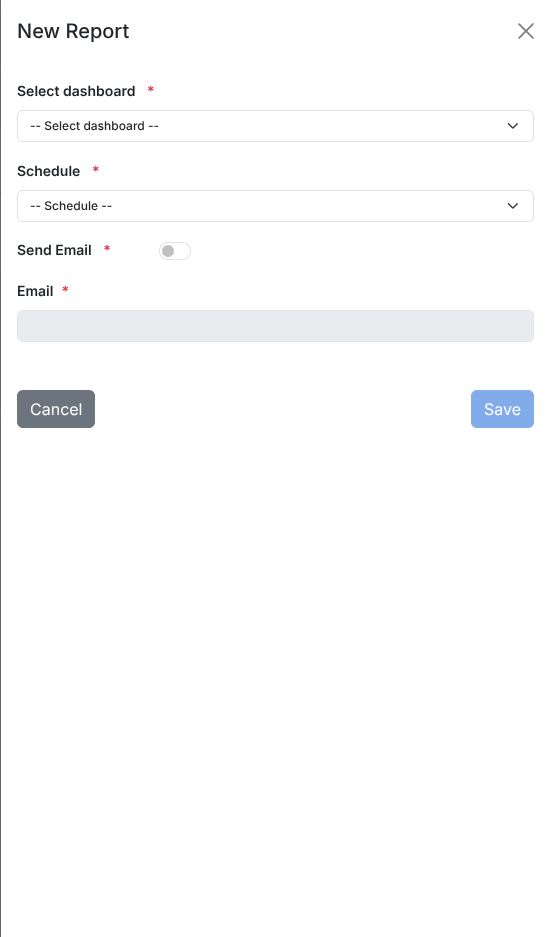
Dashboard — select an existing dashboard to snapshot.
Schedule — when to run the report:
Run once
Daily
Weekly
Monthly
Cron format (standard UNIX cron syntax)
Send Email — enable to receive the report at the specified email address.
Click Save to create the report.
Report list
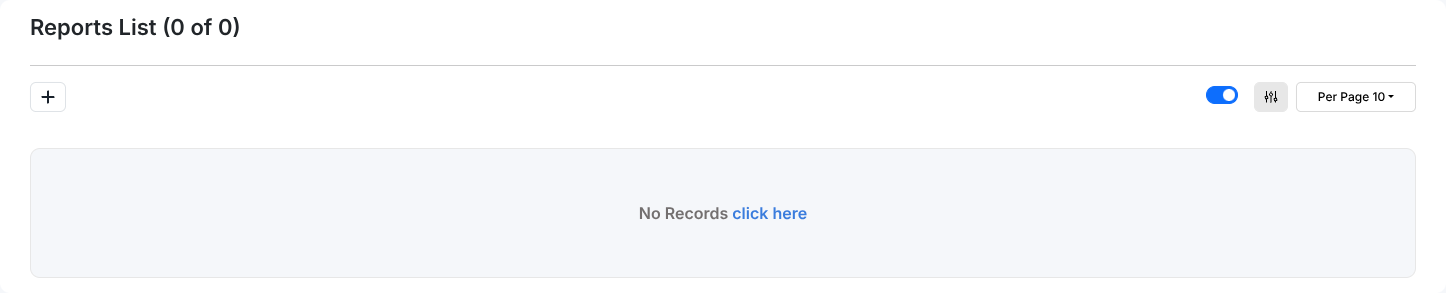
The report list shows the following columns:
Status — current execution state (see statuses below)
Enabled — whether the report schedule is active (TRUE or FALSE)
Dashboard — the dashboard being snapshotted; clicking the name opens that dashboard
Schedule — the configured run frequency
Send Email — whether email delivery is enabled (TRUE or FALSE)
Owned By — the user who created the report
Date — two timestamps: C (created), U (last updated)
Report statuses
Status |
Meaning |
|---|---|
Created |
Report created, not yet executed. |
Scheduled |
Execution in progress. |
Report generated |
Snapshot generated successfully; available for download or sent by email if configured. |
Error |
Execution failed. Check |
Row actions
Each row provides four icon buttons:
Enable / Disable — pause or resume the schedule without deleting the report; requires
manageReportsEdit — modify the dashboard, schedule, or email settings; requires
manageReportsDownload — download the generated PDF report
Delete — permanently remove the report; requires
manageReports