Search
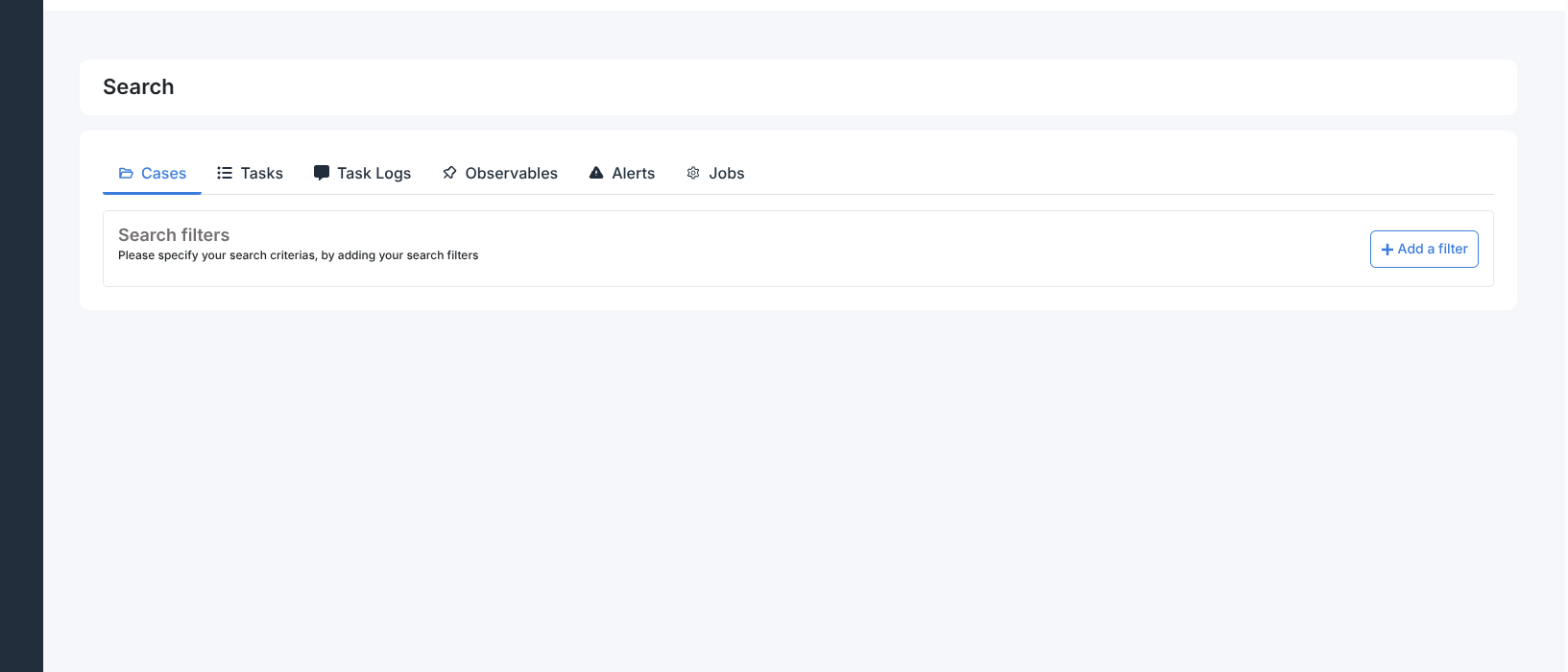
The Search page lets you query all objects in the organisation across six entity types. It is accessible from the sidebar (magnifying glass icon) and requires no additional permissions.
Results only appear after at least one filter is applied. Filters persist between sessions — each tab remembers the last applied filter set.
Each tab shows up to 15 results per page with pagination above and below the result list. Each result links directly to the object detail view and to the parent case.
Tabs
- Cases
Search cases by any case field (title, severity, status, owner, tags, dates, etc.). Each result shows the case title, owner, start date, status, tags, summary, and resolution status if the case is closed.
- Tasks
Search tasks across all cases. Each result shows the task title, created by, creation date, status, and the parent case.
- Task Logs
Search task log messages. Each result shows the message author, creation date, message content, any attachment, and the parent task and case.
- Observables
Search observables across all cases. Each result shows the data type, value, analyzer name, date, source reference, and the parent case.
- Alerts
Search alerts by any alert field. Each result shows the alert title, creation date, type, source reference, source, attribute count, tags, status, and description.
- Jobs
Search analyzer job results. Each result shows the analyzer name, case owner, completion date, status, observable type and value, and the parent case and observable.
Filtering
Each tab has its own filter bar at the top. Click + to add a filter condition. You can combine multiple conditions — all conditions must match (AND logic). To clear results, remove all filter conditions.