Integrations
Energy SOAR integrates with external systems for alert ingestion, threat intelligence enrichment, response automation, email security, endpoint protection, and identity services.
Analyzers perform enrichment and intelligence lookups against observables. Responders execute operational actions in integrated systems.
Energy Logserver SIEM
This integration sends alerts from Energy Logserver SIEM to Energy SOAR.
For the initial configuration of the API key and config.yaml, see
Energy Logserver Integration.
Alert rule configuration
In Energy Logserver, each alert rule that should create an Energy SOAR alert requires
a hivealerter section:
alert: hivealerter
hive_alert_config_type: classic
hive_alert_config:
  type: "AUDIT"
  source: "SIEM"
  severity: 2
  tags: ["ELS","audit"]
  tlp: 3
  status: "New"
  follow: True
hive_observable_data_mapping:
 - ip: "{match[src_ip]}"
   message: "Source IP address"
   tags: ["src: SIEM"]
 - domain: "{match[username]}"
   message: "Audit username"
   tags: ["src: SIEM"]
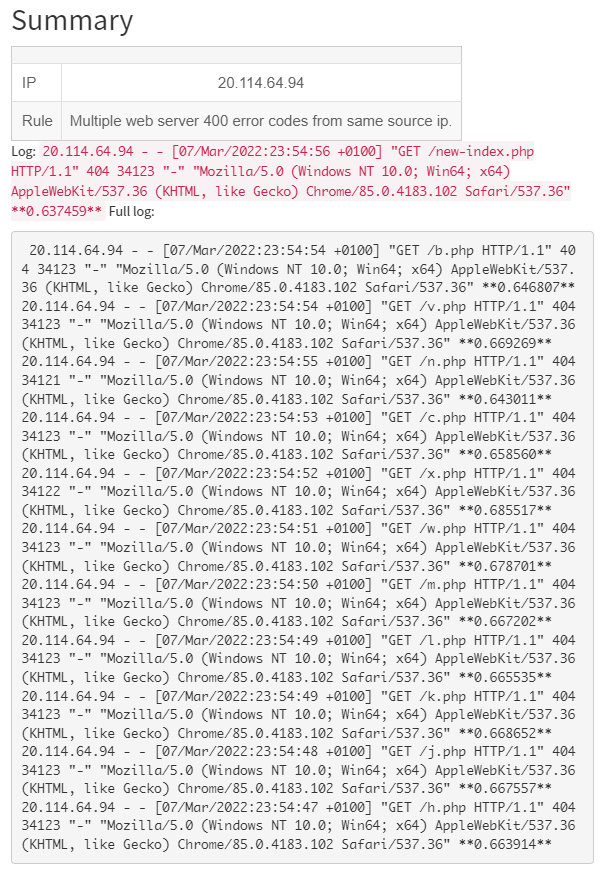
Custom alert message
By default Energy Logserver sends a JSON object with all alert fields. Use
alert_text to format the alert body as Markdown:
alert_text: "## Summary\r\n
\r\n\r\n
|  |  |\r\n
|---|---|\r\n
| IP | {} |\r\n
| Rule | {} |\r\n
\r\n\r\n
Log: `{}`\r\n
Full log: \r\n
```\r\n
{}\r\n
```\r\n
"
alert_text_args:
  - data.srcip
  - rule.description
  - full_log
  - previous_output
Microsoft Exchange
Synapse monitors an Exchange mailbox via EWS (Exchange Web Services) and creates alerts in Energy SOAR Base for each unread message it processes. Each Synapse instance watches one mailbox folder and posts alerts using the API key of a dedicated technical account.
Installation
Download the Synapse package:
curl -u'license_user:license_pwd' \
  -O https://repo.energysoar.com/add-ons/synapse.tar.gz
Extract and install dependencies:
tar -zxvf synapse.tar.gz -C /opt
dnf install -y python3-devel gcc
/usr/bin/python3 -m pip install -r /opt/synapse/requirements.txt
Install the systemd service:
cp /opt/synapse/synapse@.service /usr/lib/systemd/system/
Create a dedicated system user:
adduser -r -s /bin/nologin -d /opt/synapse --system synapse
chown -R synapse: /opt/synapse
Instance configuration
Create the instance configuration file:
cp /opt/synapse/conf/synapse.conf.example \
   /opt/synapse/conf/exchange.conf
Edit /opt/synapse/conf/exchange.conf and set the following values.
In the [EnergySOAR] section, set the API key for a dedicated technical account
(profile: analyst):
user: synapse@energysoar.local
api_key: <api-key>
In the [EWS] section, provide the Exchange technical account credentials:
username: <exchange-account>
password: <password>
auth_type: NTLM
smtp_address: <smtp-address>
folder_name: Inbox
Change the instance name in the [Instance] section from synapse to exchange.
Start the instance:
systemctl enable --now synapse@exchange
Multiple instances
The synapse@.service template supports running several independent instances
in parallel, each with its own configuration file. This is useful when monitoring
multiple mailboxes or serving different client organisations in an MSSP deployment.
Create a separate configuration file for each instance:
cp /opt/synapse/conf/synapse.conf.example \
   /opt/synapse/conf/exchange2.conf
Set a unique [Instance] name in each file, then start the instance:
systemctl enable --now synapse@exchange2
Dedicated mailbox folder
By default Synapse monitors the Inbox folder of the configured mailbox. In
production it is common to route notification emails into a dedicated subfolder
so that Synapse processes only the messages intended for it and leaves regular
mail untouched.
Create the subfolder in Exchange using your mail client or Exchange admin tools,
then set folder_name in the [EWS] section of the instance configuration
file to the exact folder name:
folder_name: SOC-Alerts
Restart the instance for the change to take effect:
systemctl restart synapse@exchange
Outlook categories
Synapse uses Outlook categories to automatically assign cases to the analyst who picked up the email. For this to work, each analyst must create a personal category in Outlook named exactly after their Energy SOAR username.
When the analyst receives a notification email in the monitored mailbox, they tag it with their Outlook category before moving it to the Synapse folder. Synapse reads the category, looks up the matching Energy SOAR account, and assigns the newly created case to that user.
To create the category in Outlook:
Open Outlook and go to Categorize in the Home ribbon.
Select All Categories, then click New.
Enter your Energy SOAR username as the category name and choose a colour.
Click OK.
An email without any category still triggers case creation, but the case is left unassigned.
Exchange certificate
On-premises Exchange servers typically use a certificate issued by an internal
CA. The exchangelib library that Synapse uses to connect via EWS validates
the server certificate and will fail if it cannot verify the chain.
To trust an internal certificate:
Open the Exchange Outlook Web App in your browser (usually
https://email.<your-domain>).Export the server certificate from the browser’s certificate viewer.
Copy the certificate file to the Synapse server:
cp <your-cert>.crt /usr/local/share/ca-certificates/extra/
Tell the
requestslibrary where to find it by adding the following line to/etc/environmenton the Synapse server:REQUESTS_CA_BUNDLE=/usr/local/share/ca-certificates/extra/<your-cert>.crt
Reload the environment and restart the Synapse instance:
source /etc/environment
systemctl restart synapse@exchange