Alert Triage
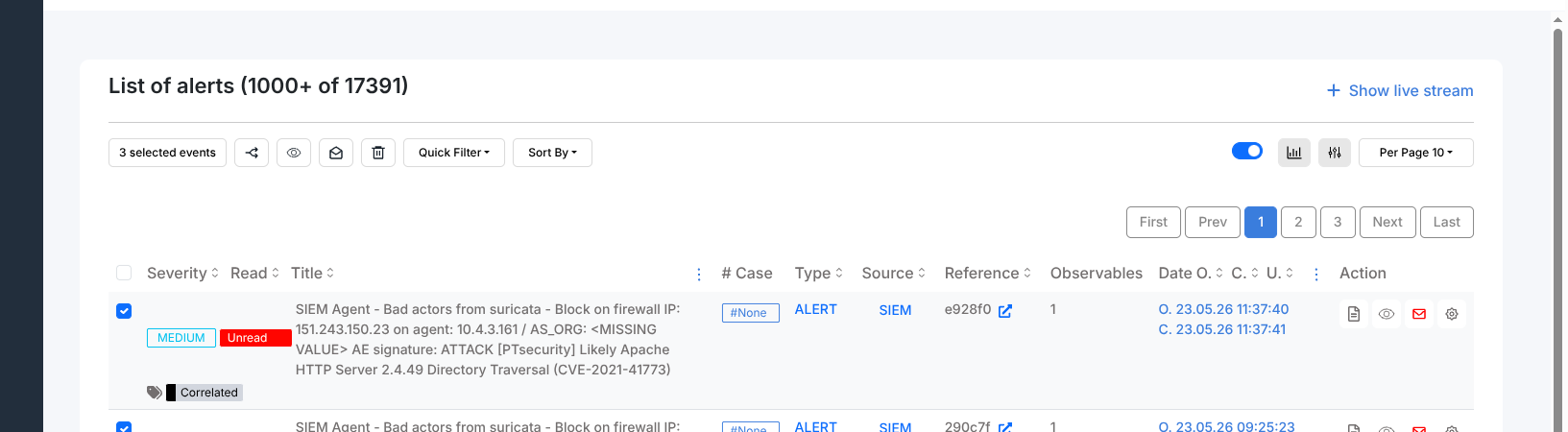
This page covers working with multiple alerts at once: selecting rows, bulk status changes, and merging alerts into cases.
Selecting alerts
Tick the checkbox at the left of one or more alert rows to select them. A count of selected alerts appears in the action bar. Selecting alerts unlocks the bulk actions described below.
Bulk status actions
With one or more alerts selected:
Mark as read / Mark as unread — marks all selected alerts as read or unread without opening each one. The Read column updates immediately.
Ignore new updates — stops the platform from marking these alerts as Updated when the source sends new data. Use this for alerts you are actively monitoring but do not want re-surfaced.
Track new updates — reverses the above; re-enables the Updated status for the selected alerts.
Remove Alerts — permanently deletes the selected alerts. Requires the
manageAlertpermission.
Creating a case from multiple alerts
To group related alerts into a single case without opening each one individually:
Select the alerts you want to combine.
Click New case from selection in the action bar.
The case creation form opens with the selected alerts linked to the new case.
All selected alerts change status to Imported after the case is created.
Merging alerts into an existing case
To add selected alerts to a case that already exists:
Select the alerts.
Click Merge selection into case in the action bar.
Enter or search for the target case number.
Confirm. The platform posts the alerts to the existing case and navigates to the case detail page.
All merged alerts change status to Imported and their # Case column updates to show the target case number.