Creating a Case from an Alert
This page describes the alert-to-case import process in detail: when to create a new case versus merging into an existing one, how to choose a template, and what the platform does after import.
Before creating a case
Open the Alert Preview panel and check the Similar cases tab. It lists cases in your organisation that share at least one observable with the current alert. If a relevant case already exists, use Merge selection into case from the alert list instead of creating a duplicate.
Choosing a template
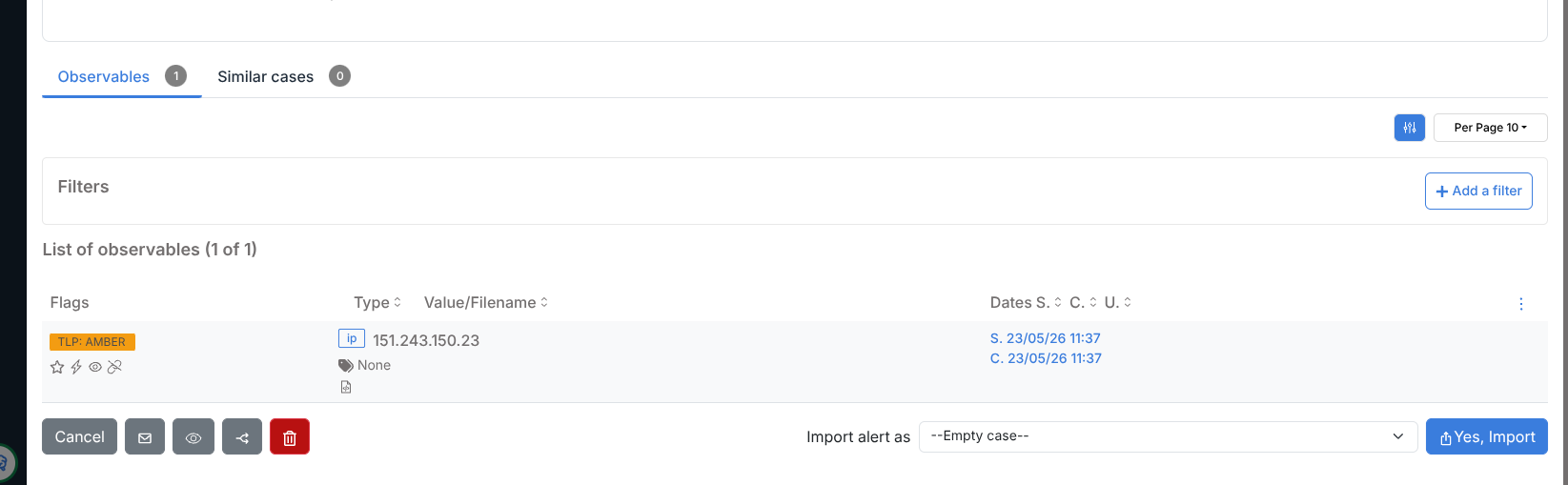
At the bottom of the Alert Preview panel, open the Import alert as dropdown.
It lists all case templates available to your organisation, plus --Empty case--.
Empty case — creates a blank case. No tasks, tags, or custom fields are pre-populated. Use this when no template matches the incident type.
Named template — pre-populates the case with that template’s tasks, tags, custom fields, title prefix, severity, TLP, and PAP. The tasks from the template appear in the Tasks tab immediately after import.
Energy SOAR ships with the following built-in templates:
|
|
Importing the alert
After selecting a template, click Yes, Import. The platform:
Creates the case with the template’s pre-populated fields.
Copies the alert’s observables into the case.
Changes the alert status to Imported.
Writes the linked case number into the # Case column of the alert list.
The alert remains visible in the alert list with status Imported. It is not deleted.
After import
Open the newly created case from Cases in the sidebar. The Details tab shows the case fields from the template. The Tasks tab lists the template tasks, all in Waiting status. The Observables tab contains the alert’s observables, ready for analysis.