Organisation
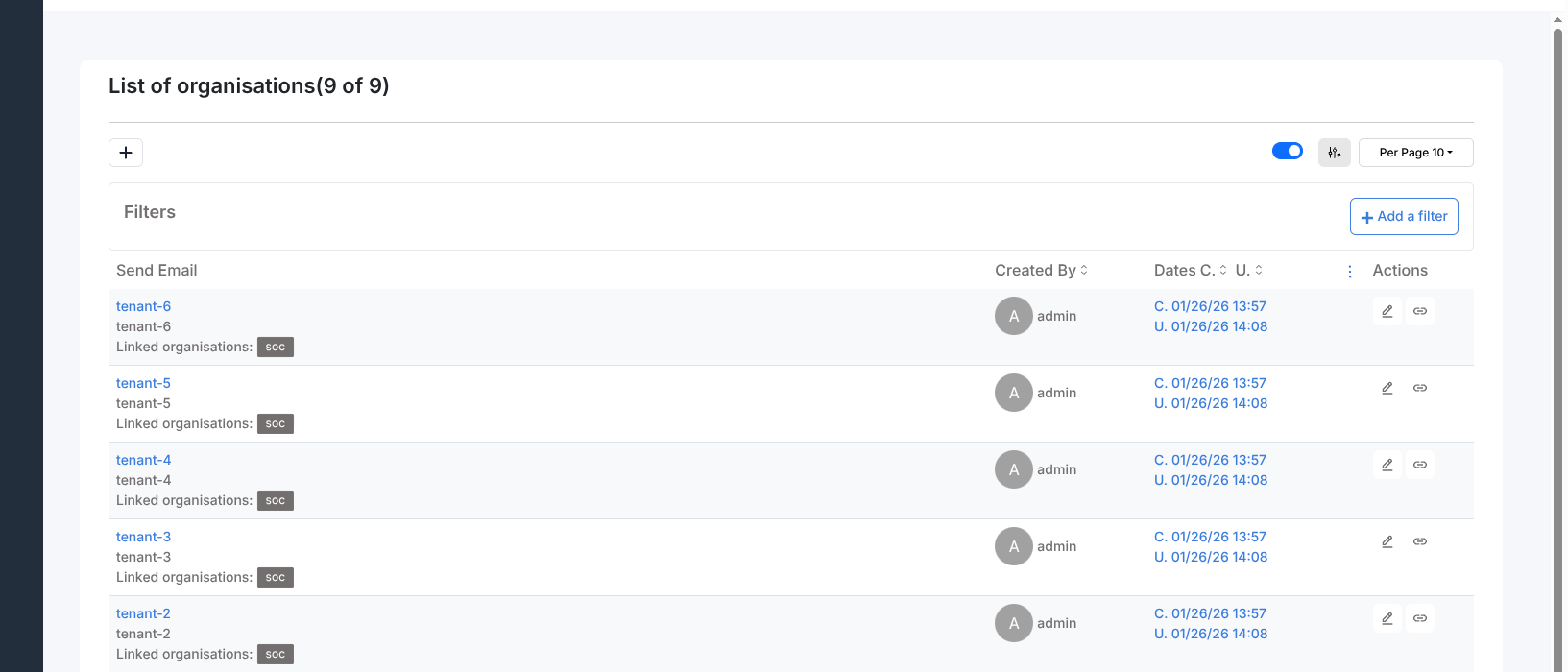
Energy SOAR supports multi-tenancy through organisations. A single instance can host multiple organisations, each with its own users, cases, alerts, and analyzers. Data is fully isolated between organisations by default.
Users
A user can belong to multiple organisations and holds a separate profile in each one.
This means the same user account can have the analyst profile in one organisation
and the read-only profile in another.
Users switch between organisations using the switch button in the header, without logging out. Permissions and data access update automatically for the selected organisation.
Linking organisations
By default, organisations cannot see each other’s data. A user with the
manageOrganisation permission can link two organisations. The link is bidirectional:
both organisations gain visibility into each other simultaneously.
Only after organisations are linked can cases be shared between them.
Case sharing
When a user creates a case, it belongs to their organisation with the org-admin
profile applied to the share — meaning there are no restrictions for the owning
organisation.
To share a case with another organisation:
The owning organisation must already be linked to the target organisation.
Open the case and use the Share action.
Select the target organisation and the profile to apply to the share.
The selected profile controls what the receiving organisation can do with the case. For a user to act on a shared case, the permission must be present in both their own profile and the case share profile.
Tasks and observables can be shared individually, but only with organisations the case is already shared with. A case can be shared at most once per organisation.
The admin organisation
Energy SOAR creates a default organisation named admin after installation.
This organisation is reserved for platform administrators. It can manage global
objects (profiles, tags, custom fields, organisations) but cannot hold cases
or alerts.