First Login
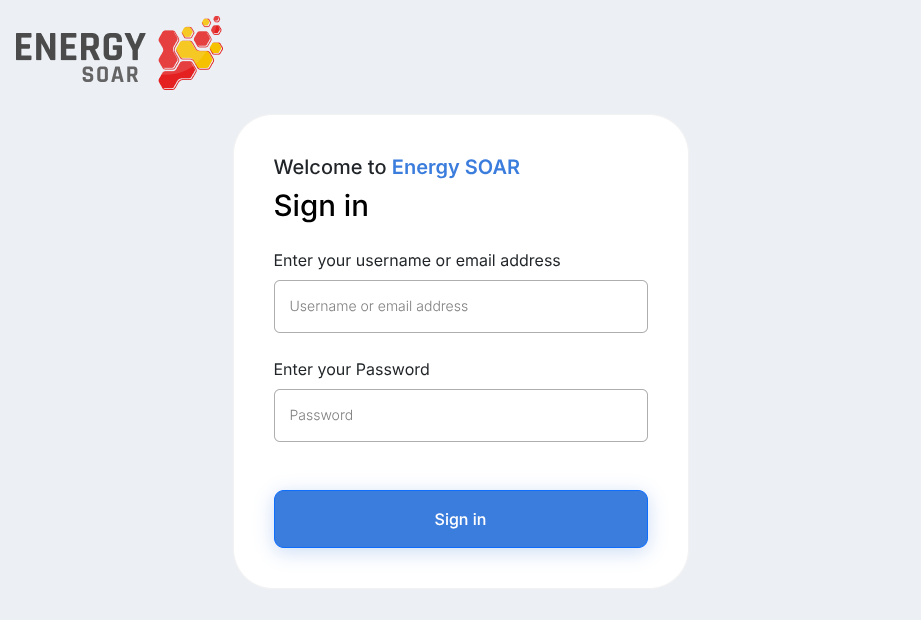
Open a browser and navigate to your Energy SOAR URL. The login page shows the Energy SOAR logo in the top-left corner, the heading Welcome to Energy SOAR, and the subheading Sign in.
Logging in
Fill in two fields and click Sign in:
Enter your username or email address — type your login name or email address.
Enter your Password — type your password.
If the credentials are wrong, a red Login Failed banner appears at the top of the form. Correct the values and try again.
On success, a green Login Successful banner confirms the login, and the platform redirects you automatically:
Users with a regular organisation land on the Cases list.
Users with the admin organisation land on the Organisations list.
If your administrator has enabled SSO, a Sign in with SSO button appears above the credential form. Clicking it redirects your browser to the configured identity provider. The username/password form remains available below an OR divider.
Multi-factor authentication
If MFA is enabled for your account, the platform responds with a Please provide MFA Code dialog after you submit valid credentials. Enter the one-time code from your authenticator app in the Code field and click Submit.
Interface overview
After login, the interface has three areas:
Header (top)
A horizontal bar spanning the full width. From left to right:
Toggle button — collapse or expand the sidebar.
Enter case ID — type a numeric case ID and press Enter (or click the search icon) to jump directly to that case.
New Case button — opens the case creation dialog (requires
manageCase).Language switcher — switch the UI between EN and PL.
Organisation settings — navigate to your organisation’s administration page (visible with
manageCaseTemplate,manageUser,manageTag, ormanageConfig).Dark mode toggle — switch between light and dark theme.
User menu — click your avatar (or the placeholder icon) and organisation/username to open a dropdown with Settings, API Docs, About, and Logout.
Organisation switcher — click the shuffle icon to switch between organisations your account belongs to. A dialog lists available organisations and their profiles; click one to switch.
Main area (centre-right)
The content area for the currently selected section. The sidebar and header remain visible at all times.